User guide
Turn an everyday photo into three math challenges. Take your time—there’s no timer.
From one photo to your next practice
A seven-step visual guide. Follow at your own pace, with no audio or automatic playback. These screenshots use demonstration data; your questions will vary.
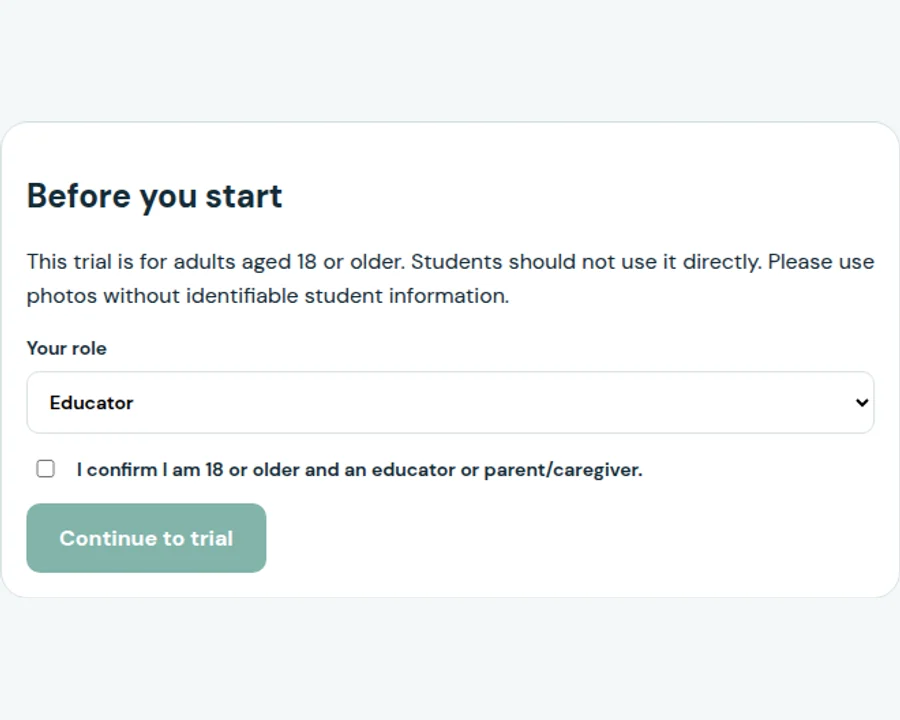
1. Enter the adult trial
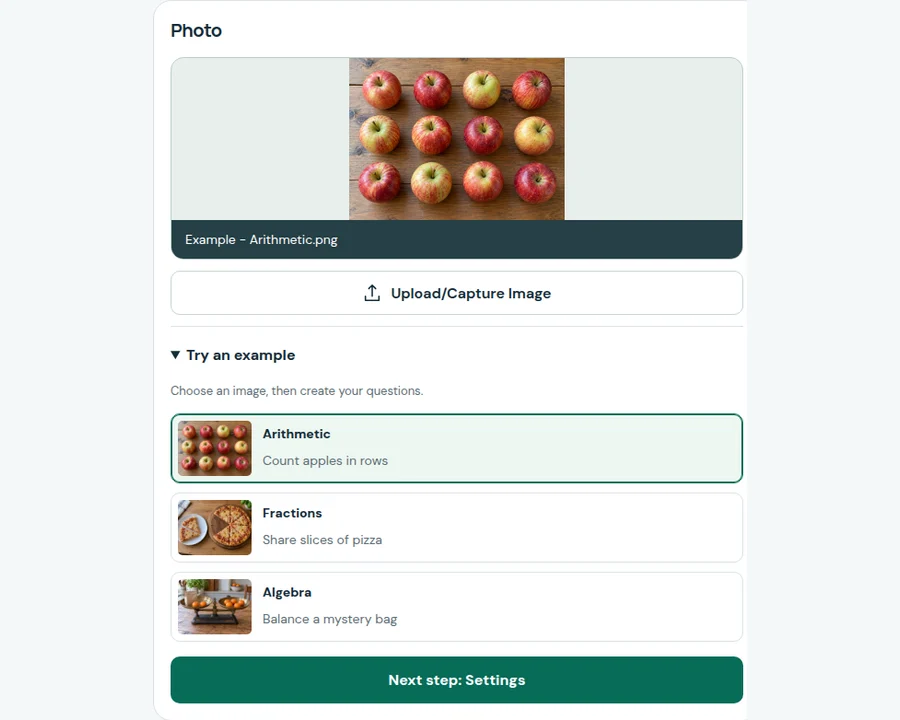
2. Take or upload your own photo
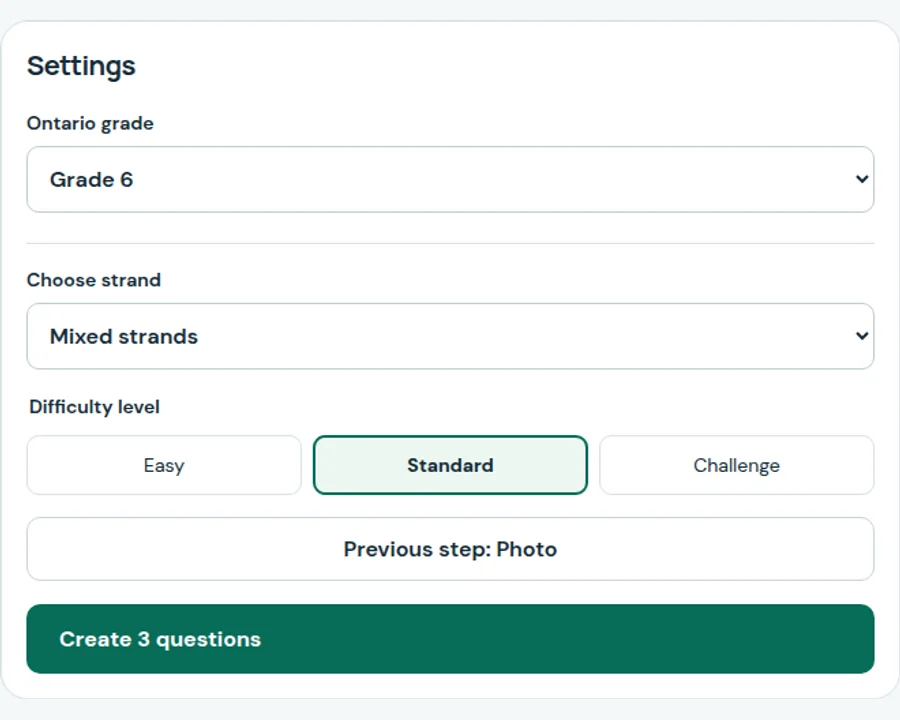
3. Create three questions
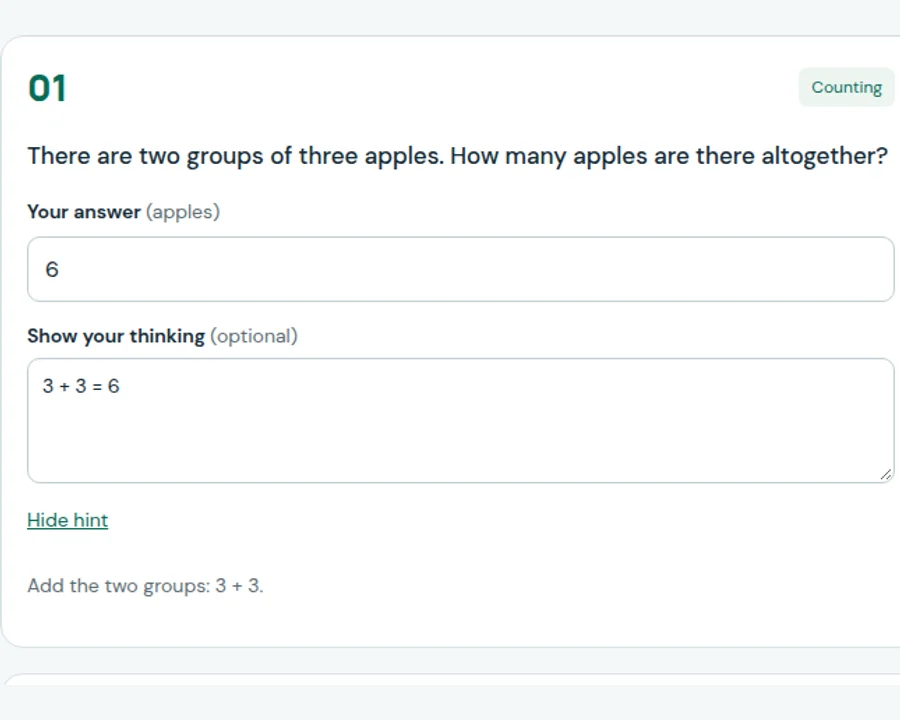
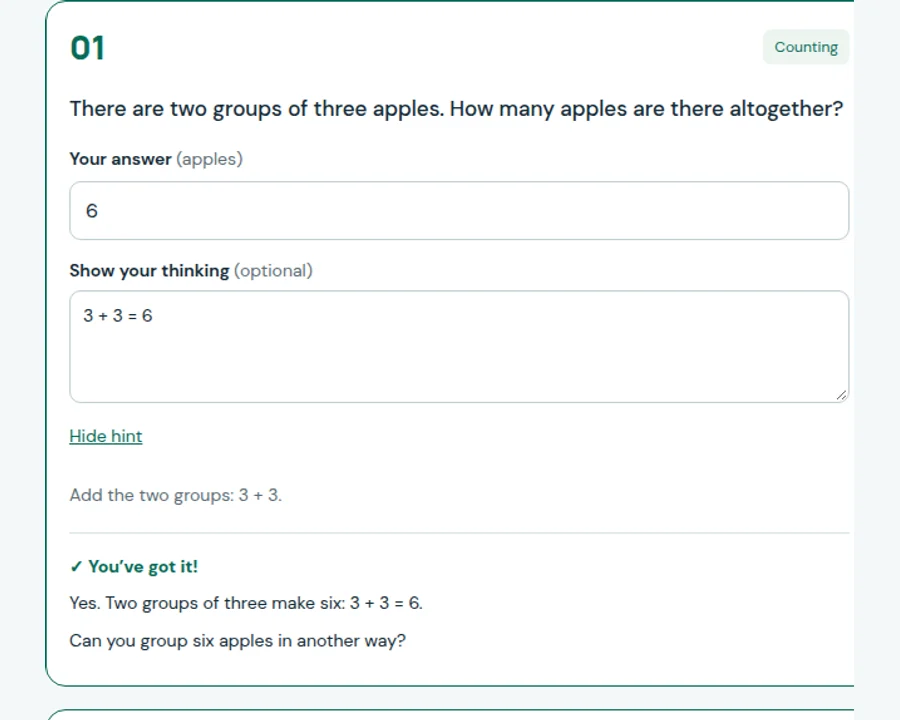
4. Answer and explore a hint
5. Learn from the feedback
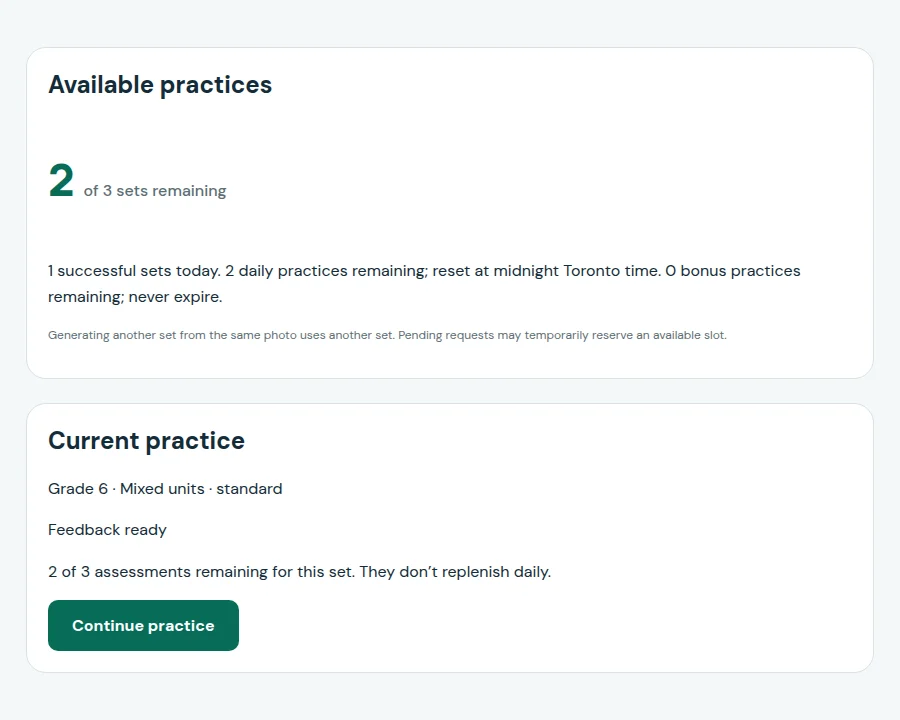
6. Check your progress and keep practising
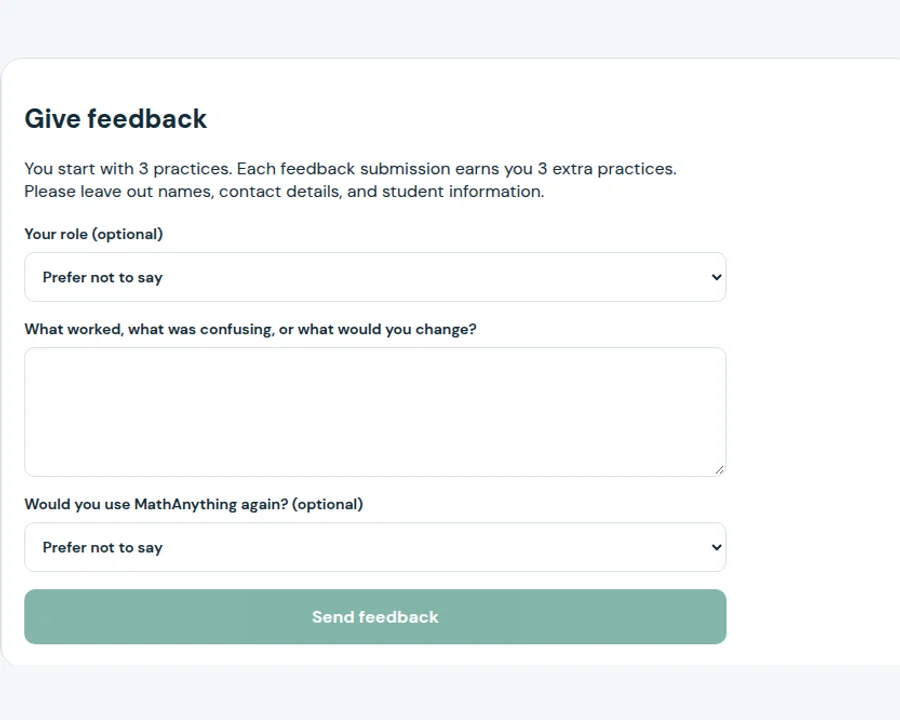
7. Earn extra practices with feedback
Quick reference
Trial access
For educators and parents/caregivers aged 18 or older; students should not use the trial directly. No name or email is required. Keep people, names, and private information out of photos and feedback. Browser access lasts seven days and is not extended by activity. Lost or expired access requires a new account; previous practice and unused rewards cannot be restored.
Photos and settings
Use JPG, PNG, or WebP up to 15 MB. Take a photo of something you can count, compare, or measure, or open Try an example. Grades 9–12 require an Ontario course. Choose a strand or Mixed strands; a selected strand offers optional overall and specific expectations where available. Changing the grade, course, or strand clears incompatible choices.
Three numeric-answer questions cover only part of a strand or expectation. Check the linked Ontario curriculum and review AI output; a target reference does not establish accuracy or mastery.
Practice allowances
You start with 3 daily practices, resetting at midnight Toronto time. Creating questions again, including from the same photo or an example, uses another practice. Each set allows 3 successful assessments in total; these do not reset daily. Failed requests do not use a successful practice or assessment.
Saved practice and rewards
Moving between Photo, Settings, and Practice preserves your inputs. Reloading restores server-saved practice, but unsaved photos, settings, and answer edits can be lost. Choosing a valid replacement photo or example archives the current set and clears its workspace; cancelled or invalid uploads preserve it. Older sets cannot currently be browsed. Open Practice summary at the end of Practice for balances, the current set, and successful totals.
Each feedback submission earns 3 bonus practices, even before creating questions or completing an assessment. Use Give feedback on Practice or the feedback link on Photo or Settings. Daily practices are used first; bonuses carry over and never expire. Ratings alone do not earn practices. Feedback, rewards, and Practice summary work with optional usage tracking off.
Troubleshooting
How do I return to practice?
Use the same browser while its seven-day session is valid and confirm adult eligibility if prompted. From Settings, choose Continue practicing current questions, or use Continue practice in Practice summary. If browser access is lost or expired, select Continue with a new account; previous practice and unused rewards cannot be restored.
I cannot get past trial entry.
Allow cookies for this site and retry with a stable connection. If you are using a browser inside another app, open the site in your usual browser.
My photo or camera is not working.
Camera options depend on your phone and browser. Take a photo with your camera app, then select Upload/Capture Image. Use JPG, PNG, or WebP up to 15 MB; convert HEIC photos to JPG first.
Questions or assessment did not finish.
Read the error and retry with a stable connection. If your photo or answers are saved, use Retry questions or Retry assessment. Check answers and thinking before retrying an assessment. If the photo cannot support your selected expectation, choose another photo or a broader curriculum focus in Settings. If automatic practice is temporarily unavailable, try again later.
My practices or assessments are exhausted.
Submit feedback to earn 3 more practices, or wait for daily practices to reset at midnight Toronto time. If all 3 assessments for a set are used, select Return to first step: Photo and create a new set; creating questions uses a practice allowance. Practice summary shows your remaining practices and assessments.
A question or its feedback seems wrong.
AI can make mistakes. Check the result yourself and share the problem using Give feedback. Include enough detail to explain it, without identifiable student information.
Where can I change usage tracking?
Open Privacy settings from the footer. Turning optional detailed tracking off does not change practice access, allowances, or Practice summary statistics. That page explains what is collected and retained.
Still need help? Email info@mathanything.com with the problem and your browser. Do not send session credentials or identifiable student information.